How to export a big Snapchat Memories library in parts
Set a date range on Snapchat's "My Data" page and ask for a year or two at a time. Each part is smaller to download and upload, and Snapchat takes one request every 48 hours, so plan a few bigger parts rather than many small ones.
Step by step
- Choose what to export Open "My Data" (in the Snapchat app it's in Settings; on a computer, go to accounts.snapchat.com) and turn on the switches from our guide, for Memories or for Memories and chat media.
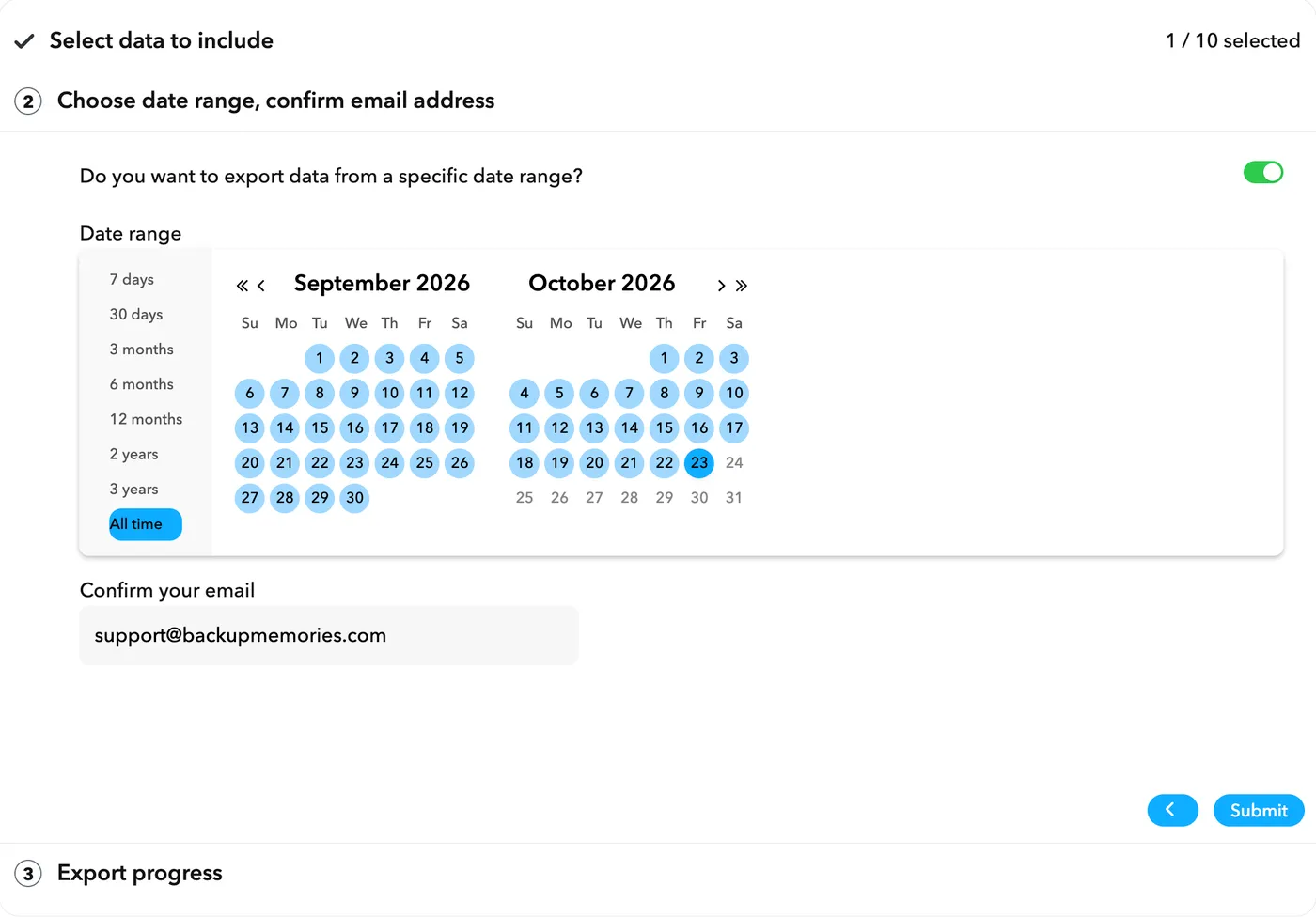
- Set the date range When you get to "Choose date range, confirm email address", turn on "Do you want to export data from a specific date range?" and pick the first and last day in the calendar.
- Confirm your email and submit Check the address and press "Submit". Download the files within 72 hours of Snapchat's email, then fix that part with BackupMemories.
- Ask for the next part Snapchat takes one request every 48 hours, so come back two days later for the next range. Start the new one the day after the last one ended, so nothing is left out.
When it’s worth splitting
You don’t have to. We take up to 100GB in one go. But over about 10GB, a single export means a long download, a long upload and a long wait while we fix it, and one dropped connection can cost you hours. Parts of a year or two each are quicker at every step, and you can save the first part while Snapchat prepares the next.
If you don’t know how big yours is, a rough guide is the number of years you’ve been saving Memories and how many videos there are. Videos are most of the size. And if Snapchat has told you you’re over its free 5GB of Memories storage, you’re well on the way.
What the date range looks like
On a computer, the date range has always been there in our tests. The switch at the top turns the date range on. The list on the left has quick choices, from “7 days” to “All time”, and the calendar lets you pick the first and last day yourself.
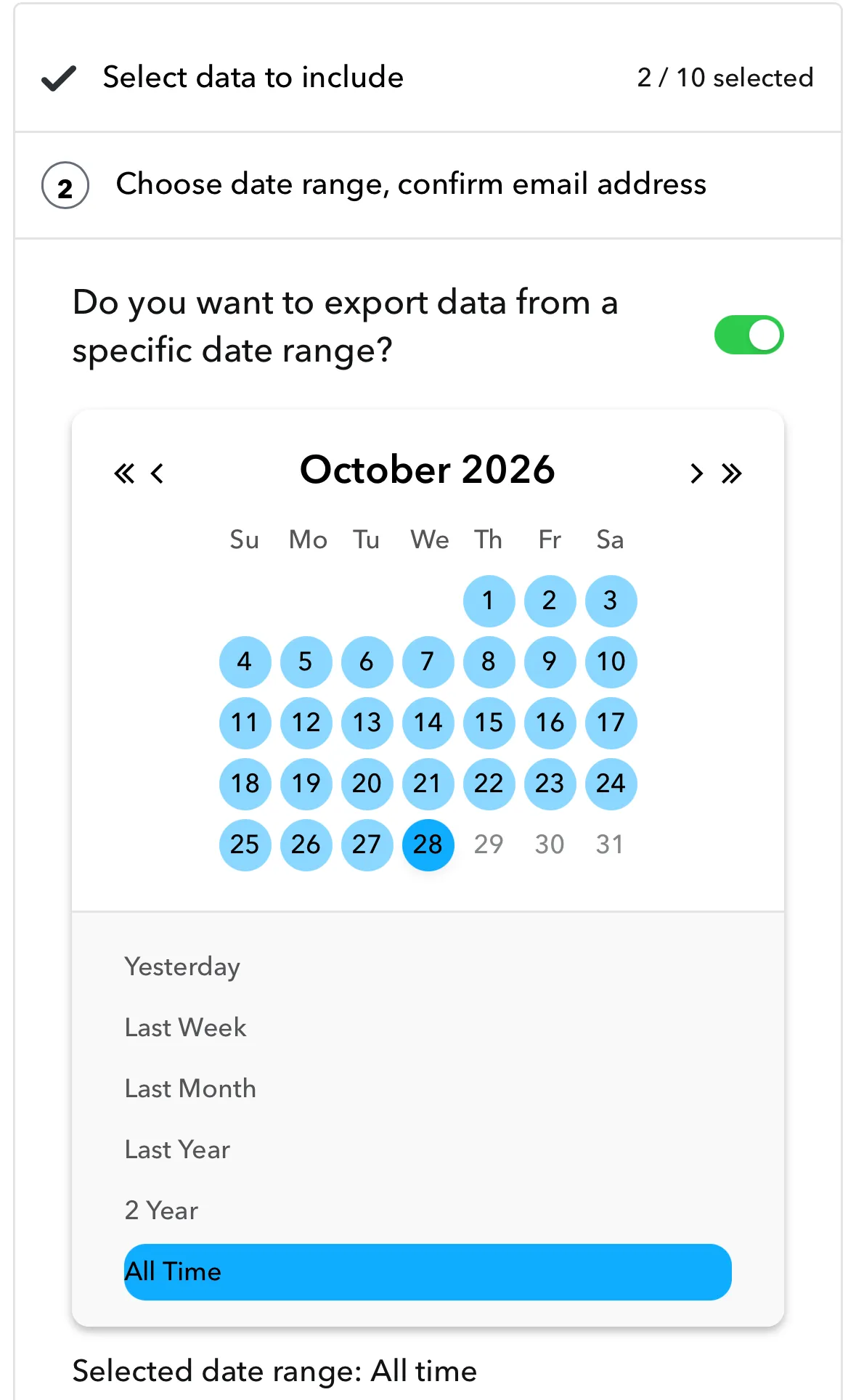
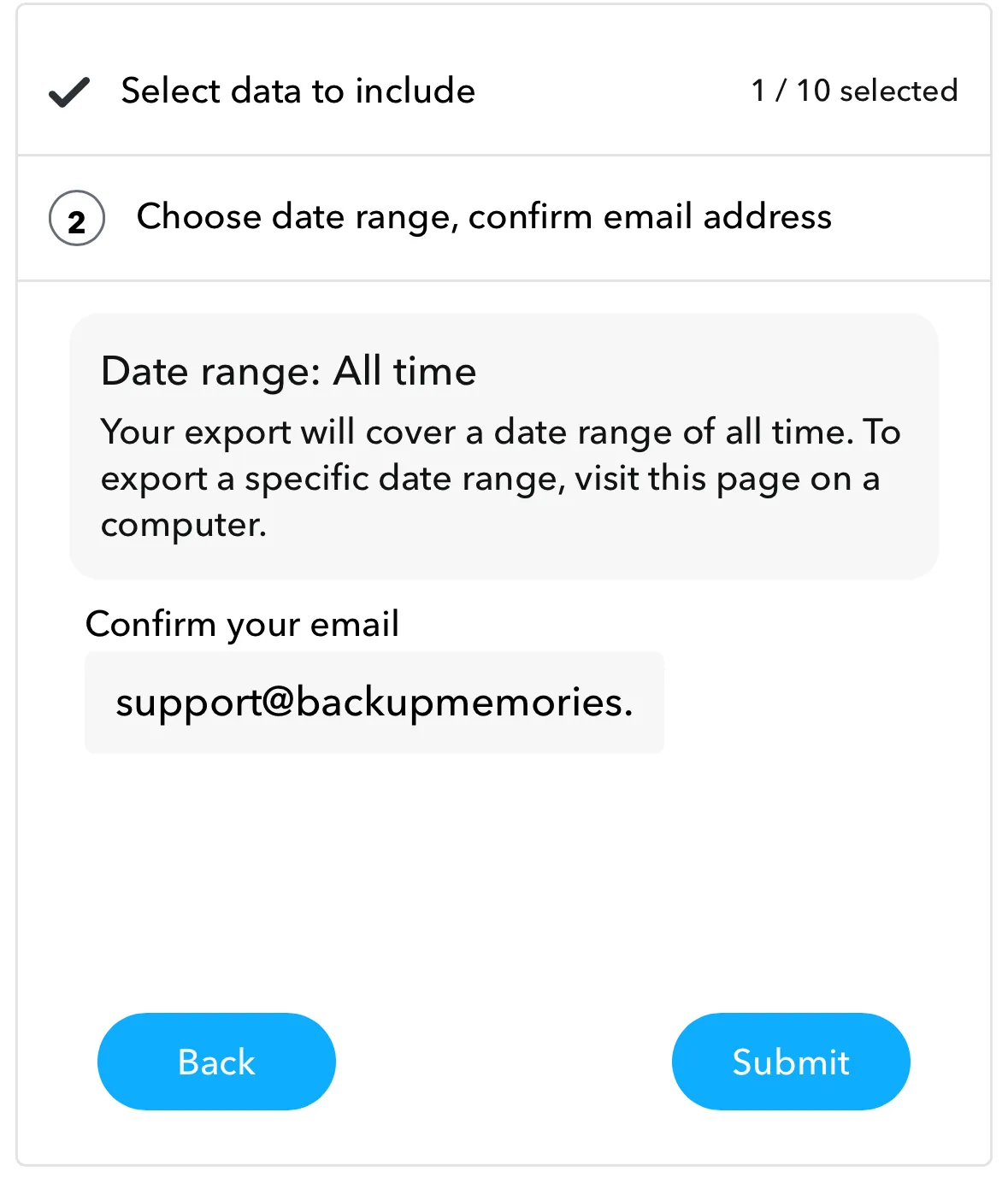
On a phone, it depends. In our tests, the same screen sometimes had the same switch and calendar (with quick choices from “Yesterday” to “All Time”), and sometimes only said the export would cover all time and to use a computer for a date range.
Planning the parts
Snapchat takes one request every 48 hours (it says so on “My Data”). So 5 parts take at least 8 days to ask for. A few bigger parts are usually better than many small ones.
- Most years were quiet, a few were busy? Make the quiet years one part and give each busy year its own.
- Don’t overlap the dates. Start each part the day after the last one ended. A memory in two parts would be saved twice.
- Keep each export separate. Upload the files from one export together, and the next export on its own. Files from two different exports don’t fit together, so we’d refuse them as one upload.
What you get
Each part comes back from us as its own set of fixed photos and videos. Put them in the same place and they slot together, because every file is named by the date it was taken.
Waiting for Snapchat's email?
Snapchat usually takes a day or two to send your export, sometimes up to a week. Leave your email and we'll send you one reminder, with what to do next.